
Restore MySQL Databases after Server Failure and Data Corruption
 Written By Monika Dadool
- Approved By Kuljeet Singh
 Updated on 08 April, 2026
 Min Reading 7 Min


After an unexpected MySQL Server crash, facing inconsistency or integrity issues in the database or corruption in tables is quite common. The database usually remains inconsistent if some transactions were in progress and failed to be written completely. When tables or indexes are corrupted, you may fail to open or access them or encounter errors, such as:
Table is marked as crashed and should be repaired
Error: Can't open table .ibd file
In case your database file gets corrupted after server crash, the easy solution is to restore it from backup. In this article, we will discuss methods to restore MySQL backup/dump file. If the backup file is not available, then you can take the help of a reliable MySQL repair tool to restore the corrupt database.
Common Reasons for MySQL Server Crashes
There are multiple reasons that may cause the MySQL Server crashing or not responding issue. Some of them include:
- Server interruption during update. For example, MySQL Server or host machine was killed mid-update, leaving data in an inconsistent state.
- Bug in mysqld.
- External program tampering with data/index files without proper locks, while mysqld was running.
- Multiple MySQL servers sharing the same data directory without proper file system locking.
- Corrupted data or index files confusing the server and cause it to fail.
- Hardware issues on the system.
You can detect the exact reason why your server has crashed by checking the MySQL error logs.
Understanding MySQL Data Storage
Before performing MySQL database recovery, you should know how database is stored in MySQL. This helps you easily and quickly select the reliable backup recovery method and ensure efficient recovery of database after server failure or corruption.
MySQL uses different storage engines, with InnoDB as the default and MyISAM as another common option. Each engine has its own file structure that determines how data is managed and recovered.
InnoDB File Structure:
ibdata1 (system tablespace)
redo logs (ib_logfile)
undo logs
.ibd files (file‑per‑table)
Binary logs
MyISAM File Structure:
.frm files for table definitions
.MYD files for data
.MYI files for indexes.
How to Restore MySQL Database Backup after Server Failure?
You can follow these methods to restore MySQL database from backup.
Method 1 - Use mysqldump Utility for Backup Restore
In MySQL Server, you can use mysqldump - a command-line tool – to create the dump file for backup and reload the dump file using mysql client to restore the MySQL databases. Before performing this process, make sure that you have all the permissions required to execute the statements. To check if all the privileges and roles granted to your account, you can use the SHOW GRANTS statement as given below:
SHOW GRANTS
[FOR user_or_role
[USING role [, role] ...]]
user_or_role: {
user (see Section 8.2.4, “Specifying Account Names”)
| role (see Section 8.2.5, “Specifying Role Names”.
}
You should have:
- CREATE privilege for objects in the statements.
- ALTER privilege for the affected database.
- SELECT privilege for dumped tables.
- RELOAD or FLUSH TABLE privilege.
Now, follow the below instructions to restore the dump file using the mysqldump utility in your system command prompt:
- In the CMD window, first connect to your MySQL Server by using these commands:
cd C:\Program Files\MySQL\MySQL Server 8.0\bin
mysql -u root –p
Enter password
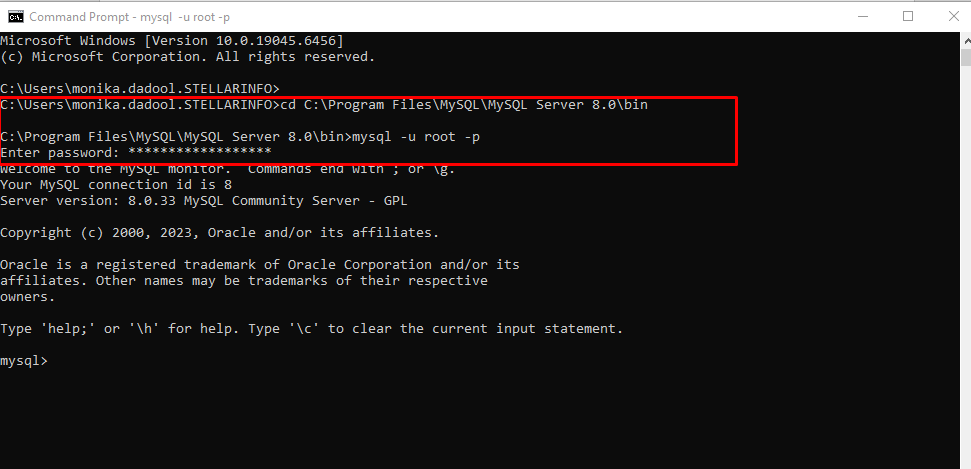
- Once you’re connected to the mysql client, you need to drop and recreate the MySQL database. For this, use the following command:
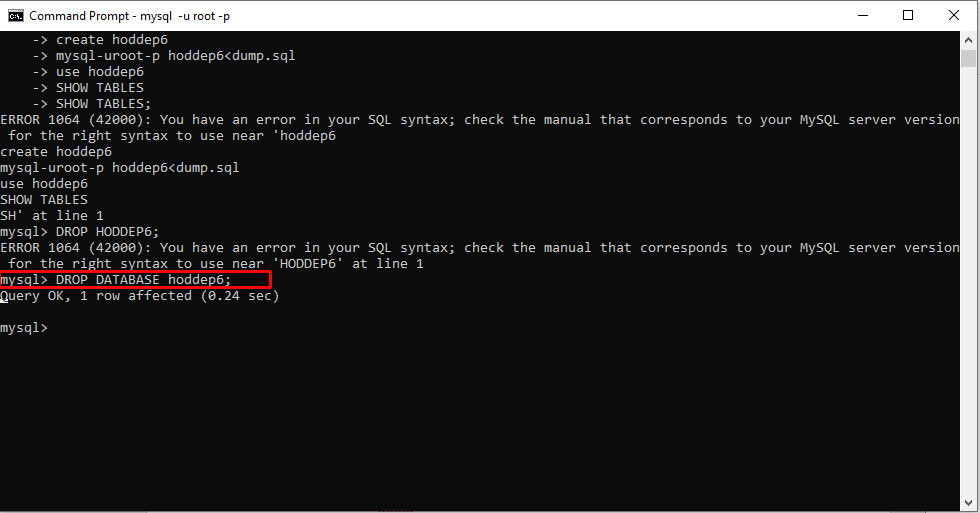
- This command will drop the selected database and then create a new database.
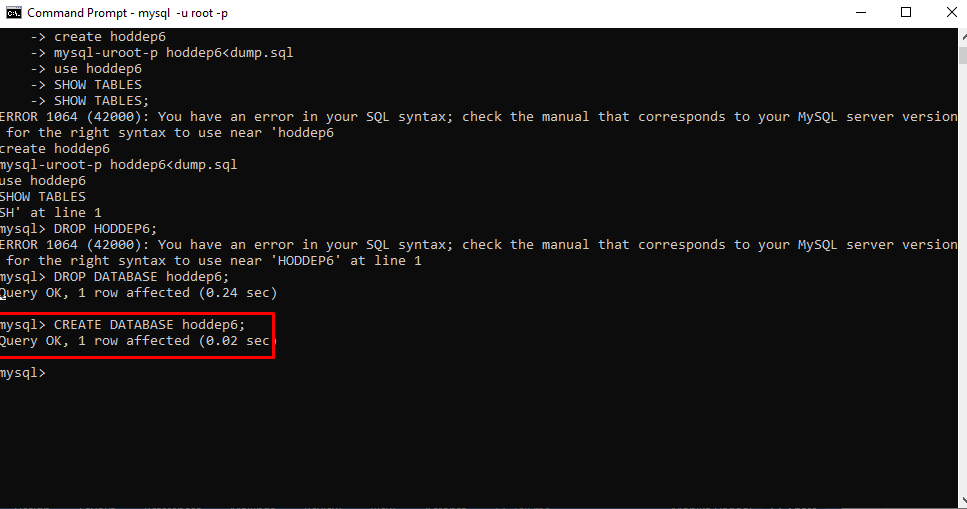
- Once the new database is created, you can use the following command to restore the database:
- Once the above command is successfully executed, you can check if the restored database has all the tables. Use the following command:
Mysql> USE hoddep6;
Mysql> SHOW TABLES;

The mysqldump utility can help you recover corrupt MySQL database but it few limitations like
- It does not support restoring a dump file containing an InnoDB table with CREATE TABLESPACE statement.
- It only works if the MySQL Server is running.
Method 2 - Use Import/Export Wizard in WorkBench to Restore MySQL Database
You can also restore MySQL database from backup using the MySQL Workbench. Here are the steps:
- In your MySQL Workbench, below Navigator, go to option labelled Management and then click Data Import/Restore.
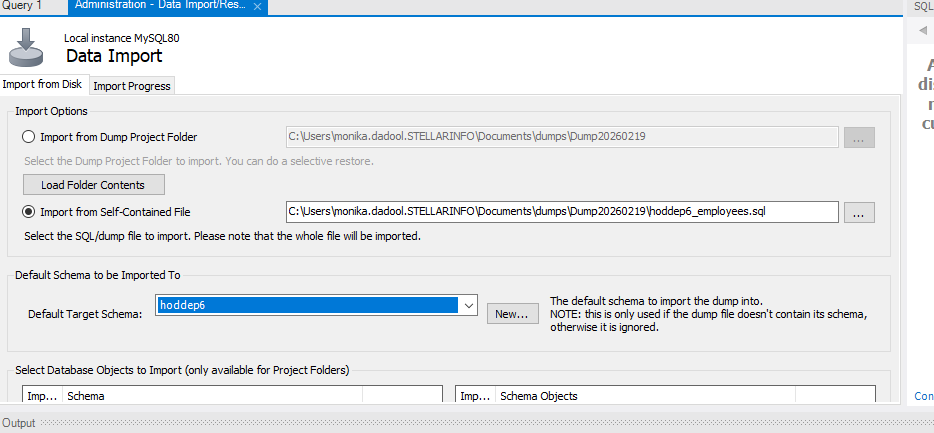
- Under the Administration - Data Import/Restore window, click the Import from the Self-Contained File option and browse for the .sql file containing the backup of database (Here, it is named - hoddep6).
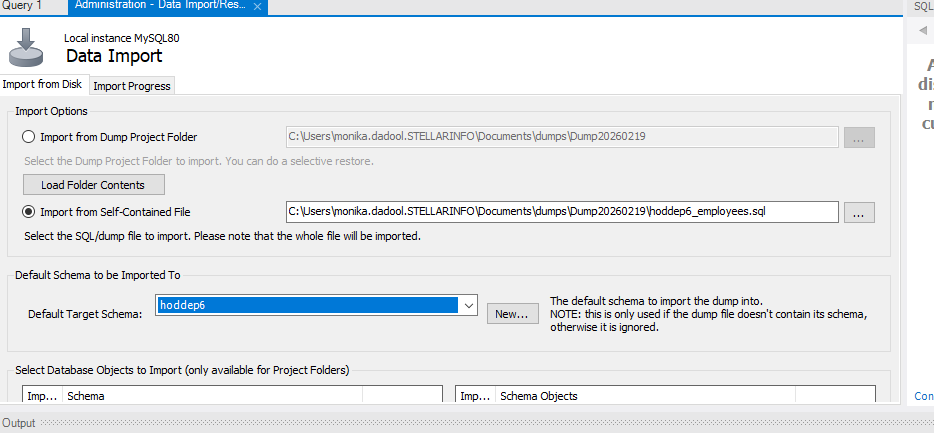
- After this, under option labelled - Default Schema to be imported To, select the target database into which the backup of the source database with its structure and data will be loaded.
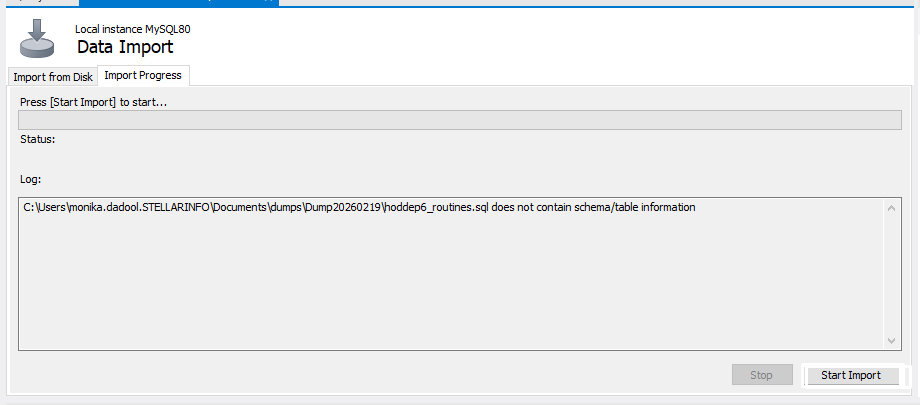
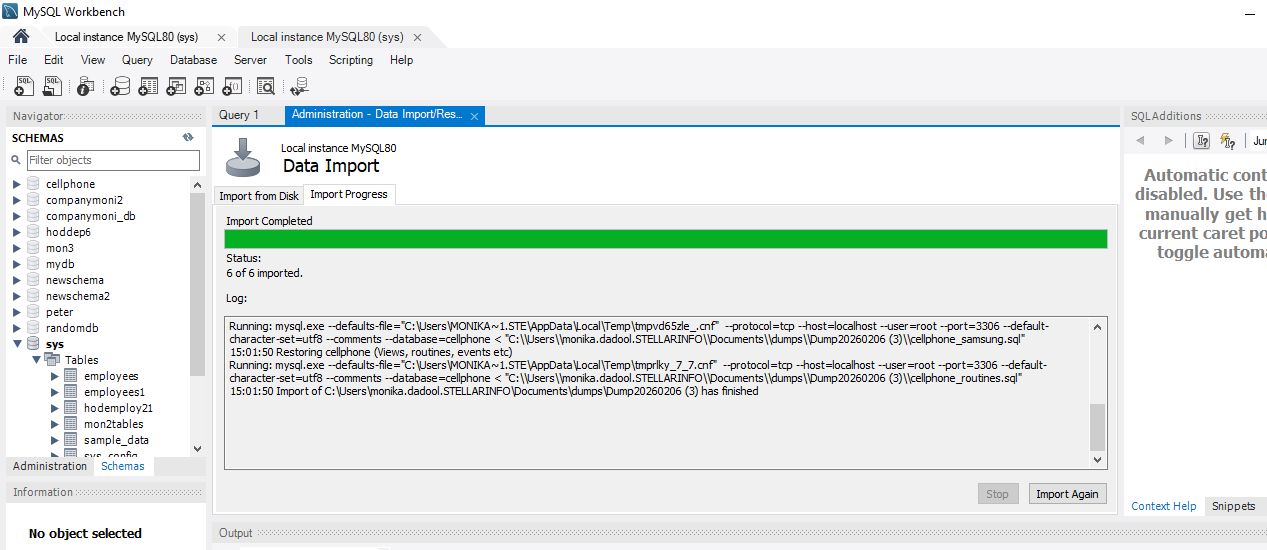
- Click on Import Process under Data Import. Click Start Import.
Method 3 - Use PhpMyAdmin to Restore MySQL Database
You can restore MySQL backup file using PhpMyAdmin. To restore the database using this tool, follow the steps cited below:
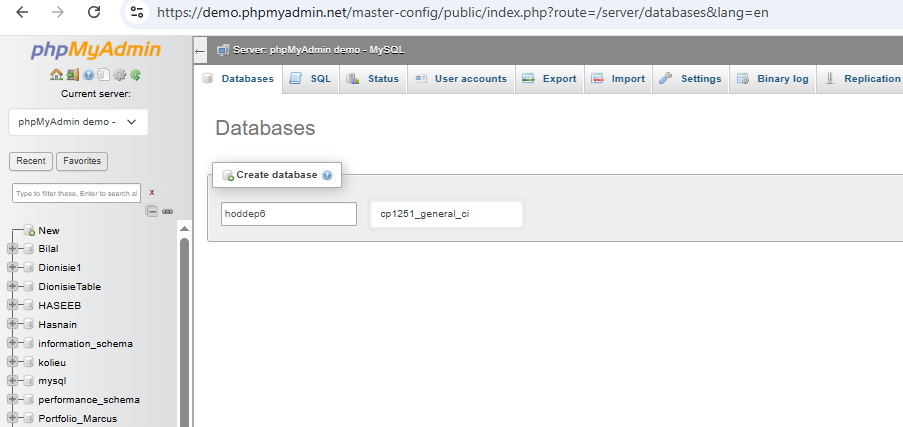
- First, you need to create an empty database for restored backup. For this,
- In PhpMyAdmin, select New Database.
- In the document that opens, enter the name of database, set the charset and collation options, and save the changes.
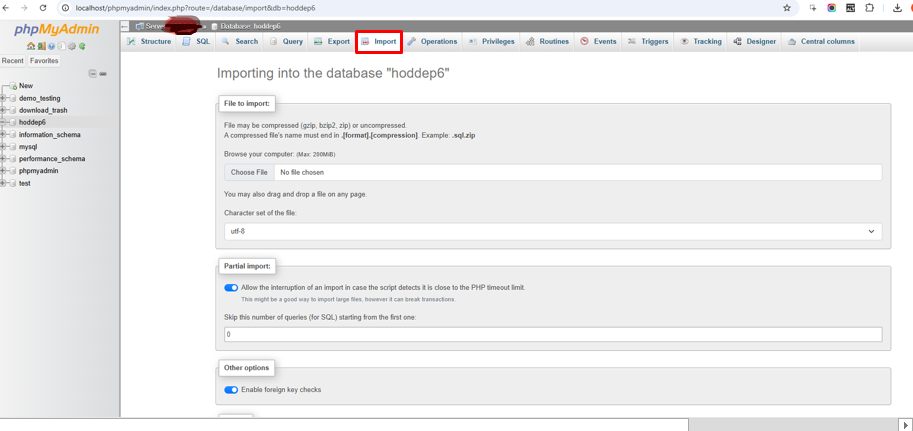
- Click Import, under Importing into the database “hoddep6”, choose the dump file, and select other options (if required). Click Import.
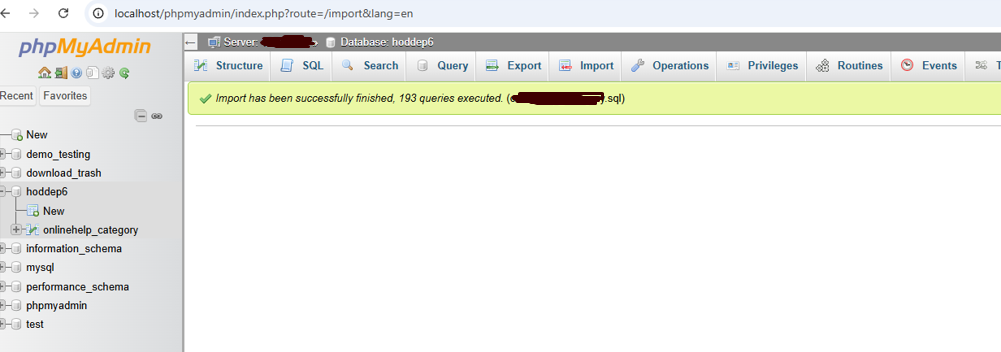
- Once the import process completes, then you will see a completion message (see the image below).
Method 4 - Point-in-Time Recovery using Binary Log File
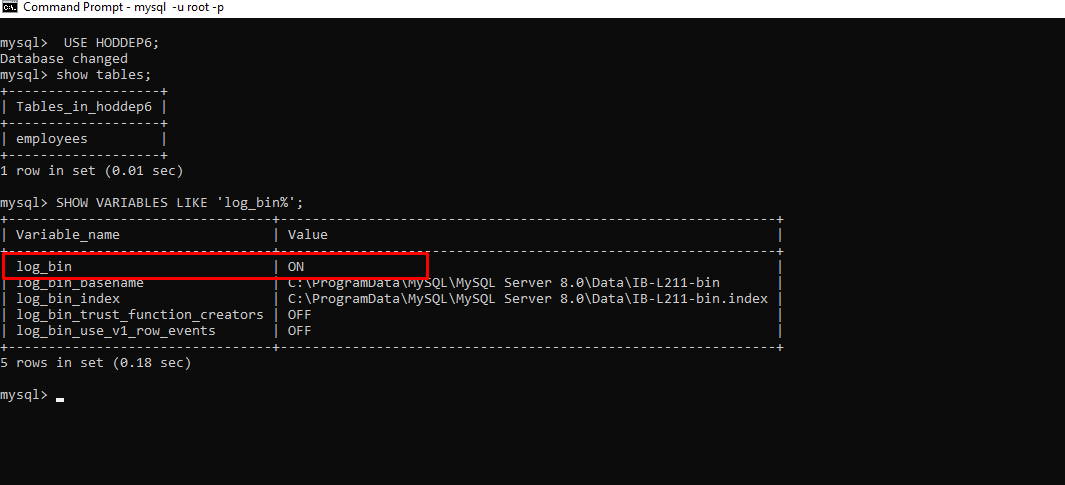
Binary logging records all the changes made to the database. If you have a binary log file, then you can easily restore the corrupt MySQL database using point-in-time recovery. To check whether the binary log file is enabled or not, you can run the following command using the MySQL client:
To learn how to perform point-in-time recovery in MySQL using the binary log file, you can read this blog.
What to do if MySQL Database Backup File is Corrupted?
If the backup file is not available or is corrupted, then you can try the following methods to repair and restore MySQL database.
Restore MySQL Database from .ibd and .frm Files
In cases where the full backup file is not available, then you can restore MySQL database using the .ibd and .frm files. In this method,
- First you need to recreate the database.
- Use the .frm file to extract the table schema using the mysqlfrm utility.
- Then, discard the new tablespace and replace the generated .ibd file with the original one.
- Next, import the tablespace to reconnect the table with its data.
This method requires the mysqlfrm utility to extract the CREATE TABLE definition, which can result in schema mismatch.
Repair MySQL Database
The process of repairing MySQL database varies with the storage engine. For the tables created with InnoDB engine, you need to use force recovery to repair them. To repair MyISAM tables, first stop the MySQL Server and then use the following command:
Then, start the MySQL Server.
Note: This command doesn’t support repairing of partitioned tables
Read this blog to know how to fix MySQL database corruption.
Use a Professional MySQL Repair Tool
If you have no backup file or you want to repair and restore the MySQL database quickly without data loss, you can use Stellar Repair for MySQL. It is an easy-to-use tool that can repair corrupt database and recover all the objects without the need for backup file. It can recover partitioned tables, indexes, etc. from the database of any size. It supports repairing the database created in both InnoDB and MyISAM storage engines. To know how this tool works, watch this video.
Conclusion
The unexpected MySQL Server crash can lead to database corruption. In this article, we have discussed the methods to restore MySQL backup after server failure. If the backup is not available or it is corrupted, you can use the .frm or .ibd file or myisamchk command to recover the tables. The best way to repair MySQL database is by using a reliable MySQL recovery tool, such as Stellar Repair for MySQL.
FAQs
Monika Dadool is a Senior Content Writer at Stellar with over 5 years of experience in technical writing.
WHY STELLAR® IS GLOBAL LEADER
-
0M+
Customers
-
0+
Years of Excellence
-
0+
R&D Engineers
-
0+
Countries
-
0+
PARTNERS
-
0+
Awards Received





